

Testing your WordPress site on mobile devices can quickly trigger IP blocks and rate limits that stop your work cold. Mobile rotating proxies solve this by automatically switching your IP address with each request, letting you test form submissions, page loads, and mobile responsiveness without interruptions. Think of them as giving your testing setup dozens of different phone connections that rotate automatically, changing them constantly due to network constraints such as NAT (Network Address Translation), which becomes much less intimidating than it sounds for newbie coders.
These proxies are especially valuable when you need to check how your WordPress site handles multiple mobile users at once, test geolocation features from different areas, or verify that your security plugins don’t accidentally block legitimate mobile traffic. Instead of manually clearing cookies or switching networks between tests, rotating proxies do the heavy lifting automatically. You can focus on actually improving your site rather than wrestling with technical roadblocks. Whether you’re checking a new WooCommerce checkout flow or testing a mobile menu redesign, mobile rotating proxies give you the freedom to test thoroughly without the usual frustrations that come with repetitive mobile testing.
What Are Mobile Rotating Proxies? (The Simple Explanation)

Why Mobile IPs Are Different (And Better for Testing)
Mobile IPs come from actual mobile carriers like Verizon, AT&T, or T-Mobile, just like the connection on your smartphone. This makes them fundamentally different from other proxy types you might encounter.
Datacenter IPs come from servers in data centers, not real devices. They’re fast and cheap, but websites can spot them easily because they don’t look like regular visitor traffic. Residential IPs come from home internet connections, which is better, but they still don’t match how most people browse on their phones.
Here’s why mobile IPs shine for testing: when someone visits your WordPress site on their phone, they’re using a mobile carrier connection. Using mobile proxies means your tests mirror real-world conditions perfectly. Websites trust mobile IPs more because they represent genuine mobile users, so you’re less likely to trigger security blocks or CAPTCHAs during testing.
Think of it this way: if you’re testing how your WordPress site performs for mobile visitors, wouldn’t you want to test it exactly how they’ll experience it? Mobile IPs give you that authenticity. Plus, mobile carriers assign IPs to thousands of users, so these IPs have built-in trustworthiness that datacenter IPs simply can’t match.
Why Your WordPress Testing Needs Mobile Rotating Proxies
Testing Mobile Responsiveness Without Getting Blocked
When you’re testing how your WordPress site looks on mobile devices, you might need to refresh the page dozens of times to check different elements, buttons, and layouts. The problem? Many websites have security systems that get suspicious when they see the same IP address requesting pages over and over again. They might think you’re a bot or someone trying to cause trouble, so they temporarily block your access.
This is where mobile rotating proxies become incredibly helpful. Think of them as changing your digital address with each test. Every time you refresh your site or load a new page, the proxy automatically switches to a different IP address. This way, your WordPress site’s security plugins won’t flag you as suspicious activity.
The beauty of rotating proxies is that they work quietly in the background. You can test your mobile checkout process twenty times in a row, check how images load on different mobile screens, or verify that your navigation menu works properly without ever hitting a rate limit. Your security systems see each request as coming from a different visitor rather than one person hammering the site repeatedly. This means you can test thoroughly and confidently without interruptions or worrying about accidentally blocking yourself from your own website.
Checking How Your Site Looks in Different Locations
One of the coolest benefits of mobile rotating proxies is seeing exactly how your WordPress site looks to visitors from different parts of the world. Your site might display perfectly for you, but what about someone viewing it from Australia or Germany?
When you test with proxies from different locations, you can spot issues like whether your currency displays correctly, if shipping options show up properly, or even if certain content is blocked in specific regions. This is especially helpful if you run an online store or have international visitors.
You can also check if your WordPress themes load all images and fonts correctly across different regions. Sometimes content delivery networks or local internet restrictions affect how your site appears, and you won’t know unless you test from those actual locations.
To do this, simply connect to a proxy server in your target country and browse your site as a regular visitor would. Take screenshots and notes about any differences you notice. This helps you catch problems before real customers experience them, making your site more welcoming to everyone, no matter where they’re browsing from.

Running Multiple Tests Without IP Bans
When you’re testing your WordPress site repeatedly, you might run into a frustrating problem: getting blocked. Many hosting services and security plugins watch for too many requests from the same IP address and automatically block it, thinking you’re a threat.
This is where rotating proxies become your best friend. Think of them as automatically changing your digital return address with each test you run. Instead of your testing tool sending 50 requests from the same IP address (which looks suspicious), it spreads those requests across different IP addresses. Your WordPress site sees each test as coming from a different visitor.
This means you can check multiple plugins, run speed tests, verify mobile responsiveness, and monitor performance without triggering security alerts. You won’t waste time being locked out or having to contact your hosting support to unblock you. It’s especially helpful when you’re testing different mobile devices or locations, since you can run dozens of tests back-to-back without any interruptions. Your testing stays smooth and efficient, letting you focus on actually improving your site instead of fighting blocks.
How Mobile Rotating Proxies Actually Work
The Rotation Process (Made Simple)
Think of rotating proxies like changing your phone number every time you make a call. Each time your WordPress site sends out a test request, the proxy automatically switches to a different mobile IP address. This keeps your testing smooth and prevents websites from blocking you for making too many requests from the same address.
Here’s how it works in practice. Let’s say you’re testing your WordPress checkout process ten times in a row. Without rotation, all ten attempts come from the same IP address, which might trigger security alerts. With rotating proxies, each test uses a different IP address, making your tests look like they’re coming from ten different mobile users across different locations.
The rotation can happen in two ways. Request-based rotation switches your IP with every single action you take. Time-based rotation changes your IP at regular intervals, like every 5 or 10 minutes. For WordPress testing, request-based rotation usually works best because you’ll test multiple pages and features quickly without worrying about rate limits or blocks interrupting your workflow.
Setting Up Mobile Rotating Proxies for WordPress Testing
What to Look for in a Proxy Provider
Choosing the right proxy provider doesn’t have to be complicated. Start by looking for services that clearly explain what they offer. If the website is full of confusing tech-speak, that’s usually a red flag.
Pricing should be straightforward and transparent. Look for providers that offer a trial period or money-back guarantee so you can test things out before committing. Many good services start around $50-100 per month, but prices vary based on how many mobile IPs you need.
Customer support is incredibly important, especially if you’re new to this. Find a provider that offers live chat or quick email responses. You’ll likely have questions during setup, and waiting days for answers isn’t helpful.
Check that they specifically offer mobile rotating proxies, not just regular ones. The provider should clearly state they have real mobile IPs from actual carriers like AT&T, Verizon, or T-Mobile.
Pay attention to ease of setup. The best providers give you simple instructions or even video tutorials. You shouldn’t need a computer science degree to get started.
Finally, read recent reviews from actual users. Look for feedback about connection reliability and speed, since slow proxies will make your WordPress testing frustrating rather than helpful.
Connecting Your Proxy to WordPress Testing Tools
Getting your mobile rotating proxy connected to your website testing tools is easier than you might think. Let’s walk through the process together.
First, you’ll need your proxy details from your provider. This typically includes an IP address, port number, username, and password. Keep these handy in a text file.
For browser testing, start with Chrome or Firefox. In Chrome, go to Settings, then search for “proxy” in the search bar. Click “Open your computer’s proxy settings.” Here, you’ll enter your proxy IP and port number. Some proxy services provide browser extensions that make this even simpler with one-click connection.
If you’re using testing plugins like Browser Shots or WP Testing, look for proxy settings in their configuration pages. Most will have a dedicated field where you paste your proxy details.
For development tools like Local by Flywheel or DevKinsta, check the network settings section. You’ll find options to route traffic through your proxy server.
Here’s a quick tip: test your connection after setup by visiting a site like WhatIsMyIP.com. If it shows a different location than your actual one, you’re connected successfully.
Many proxy providers also offer desktop applications that automatically route all your browser traffic through their proxies. This is the easiest option for beginners since it requires no manual configuration. Just download, login, select mobile rotation, and start testing your WordPress site.
Quick Configuration Tips to Get Started Fast
Let’s get your mobile rotating proxies up and running smoothly! Start by setting your rotation interval to 5-10 minutes for WordPress testing. This gives you enough time to complete actions like loading pages and submitting forms without interruptions. Most proxy providers let you adjust this in their dashboard settings.
For authentication, you’ll typically receive credentials in this format: username:password@proxy-address:port. Copy these details carefully into your testing tool or browser extension. Double-check for extra spaces, which cause connection errors more often than you’d think!
If you’re getting “connection failed” messages, try these quick fixes first: refresh your proxy credentials, check if your IP is whitelisted with your provider, and verify your WordPress site isn’t blocking proxy connections through security plugins. Sometimes simply switching to a different mobile carrier type (switching from AT&T to Verizon proxies, for example) solves stubborn connection problems.
Remember to test with just one proxy first before enabling rotation. This helps you identify whether issues stem from the proxy itself or your rotation settings. Once that single connection works perfectly, you’re ready to enable rotation and test away!
Common WordPress Testing Scenarios Where Proxies Help
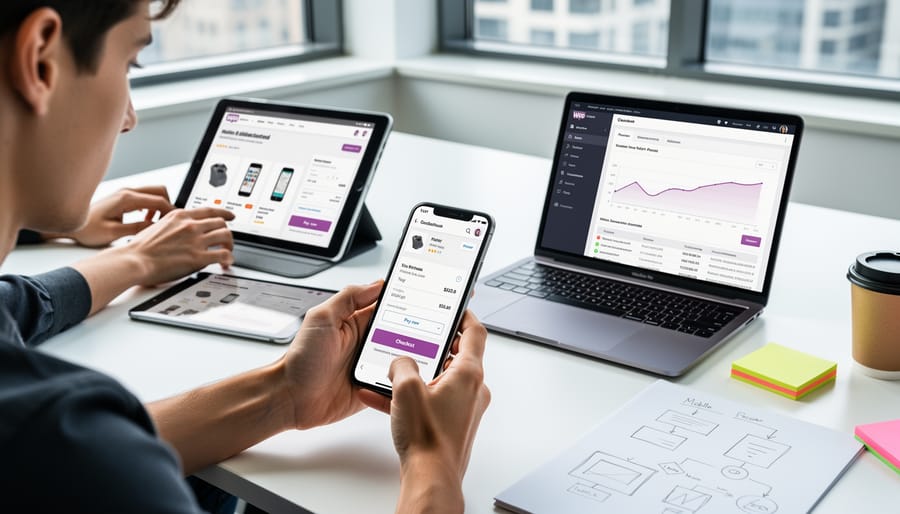
Testing WooCommerce Checkout on Mobile Devices
Testing your online store’s WooCommerce checkout process is crucial, and mobile rotating proxies make it easy to see how customers experience your site from different locations.
For example, you can test whether your checkout works smoothly for someone browsing from Toronto on Rogers network versus someone in Vancouver using Telus. Simply connect through a mobile proxy from each location and complete a test purchase. This helps you catch location-specific issues like payment gateway errors, shipping calculation problems, or slow loading times.
You might discover that certain mobile carriers display your checkout buttons differently, or that customers in specific regions see different shipping options. These insights help you fix problems before real customers encounter them, leading to more successful sales and happier shoppers.
Checking Plugin Compatibility Across Regions
Testing your WordPress plugins internationally is simpler than you might think. Start by setting up your mobile rotating proxy to connect from different countries where your visitors live. Once connected, browse to your site just like a regular visitor would and test each plugin’s features.
Pay special attention to contact forms, payment gateways, and any features that display location-specific content. For example, your booking plugin might show different time zones, or your store might display prices in local currencies. Try filling out forms, clicking buttons, and completing transactions to make sure everything responds correctly.
Keep a simple checklist of plugins to test from each region. You might discover that a plugin works perfectly from the US but has issues in Europe due to different data regulations or network speeds. This hands-on approach helps you catch problems before your real international visitors encounter them, giving you confidence that your site works smoothly worldwide.
Testing your WordPress site on mobile devices doesn’t have to be complicated or expensive. Mobile rotating proxies give you a simple way to see how your site really performs for visitors around the world, helping you catch problems before your customers do.
You’ve learned how these proxies work, why they matter for WordPress testing, and how to set them up. The best part? You don’t need to be a tech expert to get started. Most proxy services handle the complicated stuff behind the scenes, so you can focus on what really matters: making sure your site works beautifully on every device.
Think of mobile rotating proxies as your secret weapon for confident testing. They help you avoid those annoying IP blocks, test from different locations, and simulate real mobile user experiences without juggling multiple devices or SIM cards.
Ready to take the next step? Pick a proxy provider that fits your budget, start with a small testing plan, and watch how much easier your WordPress testing becomes. Your mobile visitors will thank you for it!