

Backing up your WordPress site takes about 15 minutes with a free plugin, and it’s the single most important task you can do to protect months or years of work from disappearing overnight. If your site gets hacked, your host has a server failure, or you accidentally delete something critical, a recent backup is the difference between a quick recovery and starting from scratch.
The good news? You don’t need technical skills or coding knowledge to create reliable backups in 2026. Modern WordPress backup plugins handle everything automatically, storing copies of your entire site (all your posts, pages, images, theme files, and database) in a safe location. You can set up automated daily or weekly backups that run in the background without you lifting a finger.
This guide walks you through three proven methods to back up your WordPress site, starting with the easiest plugin-based approach that works for 95% of users. We’ll show you exactly what gets included in a backup, where to store your files safely, and how to test that your backup actually works. Whether you’re running a personal blog or a small business website, you’ll have a complete backup system running by the time you finish reading.
Why You Need to Back Up Your WordPress Site
Your WordPress site represents hours of work, blog posts you’ve written, photos you’ve uploaded, customer testimonials you’ve collected, and settings you’ve carefully configured. Without a backup, all of that can disappear in an instant.
Server crashes happen without warning. Your hosting company’s hardware can fail, taking your entire site offline. I’ve seen small business owners lose years of content because their web host experienced a catastrophic server failure and didn’t have recent backups.
Hacking attempts are increasingly common, even for small sites. Hackers can deface your homepage, inject malware, or lock you out completely. When your site gets compromised, you’ll need a clean backup to restore from a backup quickly.
Plugin conflicts after updates can break your site entirely. You update a plugin, and suddenly your site displays a white screen or error messages. With a backup, you can roll back to a working version while you troubleshoot the problem.
Accidental deletions are surprisingly easy. One wrong click, and an important page or image vanishes. I’ve watched a colleague accidentally delete their entire media library while trying to remove a single photo.
Update failures can corrupt your database. Sometimes a WordPress core update doesn’t complete properly, leaving your site in an unstable state between versions.
Each of these scenarios can be devastating, but they’re all completely reversible if you have a recent backup. That’s why backing up isn’t optional, it’s essential protection for everything you’ve built.
What Gets Backed Up in a WordPress Site
When you back up your WordPress site, you’re actually protecting two distinct parts that work together to make your website function. Think of it like backing up both the engine and the body of a car, you need both to get moving.
The first component is your database. This is where WordPress stores all your written content and settings. Your database contains every blog post you’ve written, each page you’ve created, all the comments readers have left, your site settings and configurations, user accounts and their information, and even your menu structures. It’s essentially the brain of your website, all the information and instructions that tell WordPress what to display.
The second component is your files. These live on your web server and include your WordPress core files (the software itself), all your themes (including the one you’re currently using and any backups), your plugins (both active and inactive ones), and your media library with all uploaded images, videos, PDFs, and other files. The files are like your website’s body, the visual elements and functionality that bring your content to life.
A complete WordPress backup includes:
- Database with all posts, pages, comments, and settings
- WordPress core files
- All installed themes and plugins
- Media library (images, videos, documents)
- Configuration files like wp-config.php
Both components are equally important. Without your database, you’d lose all your content. Without your files, you’d have no way to display that content or make your site look and function the way you want. That’s why a proper backup always includes both pieces.
Tools and Materials You’ll Need
Before you create your first backup, let’s gather what you’ll need. The good news? You probably already have most of it.
WordPress Admin Access
You’ll need login credentials for your WordPress dashboard. This means your username and password for the admin area where you normally write posts and manage your site. If you’ve forgotten these, you can reset them through your hosting account.
A Place to Store Your Backups
Think of this as choosing where to keep your safety copies. You have several options:
*Cloud storage services* like Google Drive, Dropbox, or OneDrive work well because they keep your backups off your computer and accessible from anywhere. Most offer free storage that’s plenty for small sites.
*Your local computer* is the simplest option. Just pick a folder you’ll remember, like “Website Backups” in your Documents. This keeps everything under your direct control.
*An external hard drive* gives you physical backup storage that won’t disappear if your computer crashes. This is especially smart if your site contains years of content.
Choosing Your Backup Method
You’ll pick one of three approaches, and each needs slightly different tools:
A *backup plugin* is the easiest route. You’ll install it through WordPress itself, no technical skills required. Popular free options include UpdraftPlus and BackWPup.
Your *web hosting provider* might include backup tools in your control panel. Check your hosting dashboard or ask their support team.
*Manual backups* require FTP software (like FileZilla) and access to your hosting’s database tool (phpMyAdmin). This approach suits folks comfortable with file management.
We’ll walk through each method, so don’t worry if this sounds unfamiliar right now.
Safety Precautions Before You Begin
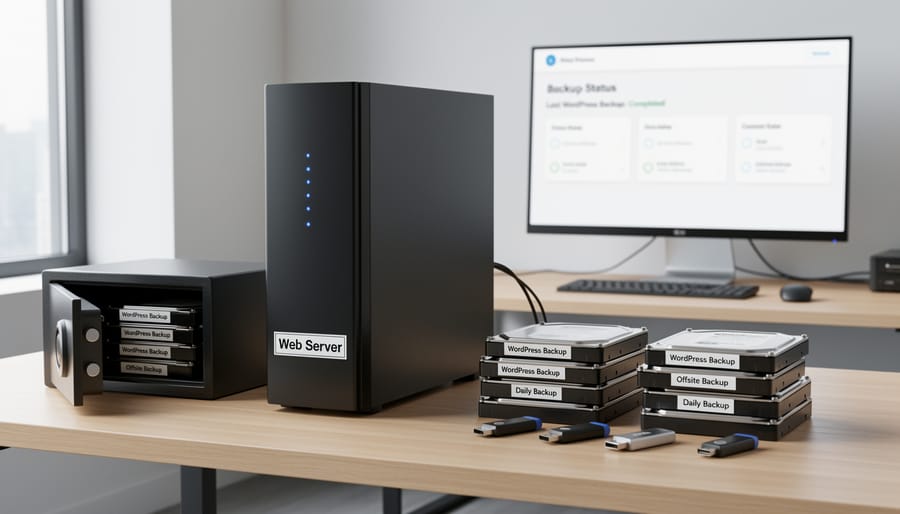
Before you create your first backup, let’s make sure you’re set up for success. Don’t worry, these quick checks take just a couple of minutes and will save you from potential headaches later.
First, confirm you have administrator access to your WordPress dashboard. You’ll need this level of access to install plugins or access backup settings. Log in and check that you can see the “Plugins” and “Tools” menu items in your left sidebar. If you can’t see these, you’ll need to contact whoever manages your website to grant you admin privileges.
Next, take a quick look at your available storage space. A typical small business WordPress site backup runs between 500MB and 2GB, depending on how many images and files you have. Check that you have at least 5GB of free space wherever you plan to store your backup, whether that’s your computer’s hard drive, or a cloud storage account. Running out of space mid-backup creates incomplete files that won’t help you when you need them.
Here’s some good news for nervous beginners: creating a backup won’t take your website offline or disrupt what your visitors see. The backup process happens in the background, copying your files and database while your site continues running normally. Your live site stays live the entire time.
Finally, jot down your current WordPress version number. You’ll find this at the bottom of any page in your WordPress dashboard, or under Dashboard → Updates. Knowing your version helps if you ever need to restore your site or ask for technical support. This simple note can save hours of troubleshooting later.
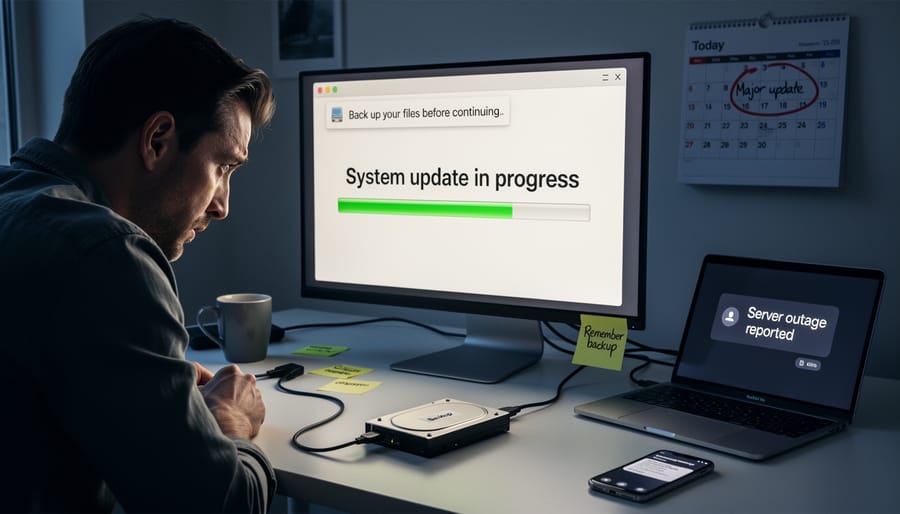
Method 1: Using a WordPress Backup Plugin (Recommended for Beginners)
Installing Your Backup Plugin
Finding and installing a backup plugin is simpler than you might think. Start by logging into your WordPress dashboard and looking for “Plugins” in the left sidebar. Click “Add New” at the top of the page.
In the search box that appears, type “UpdraftPlus” or another backup plugin name you’ve chosen. You’ll see several options pop up, but look for plugins with high star ratings and lots of active installations. These indicators show that other users trust the plugin and it’s regularly maintained.
When you’ve found the right plugin, click the blue “Install Now” button next to it. WordPress will download and install the plugin automatically. This takes just a few seconds.
Once installation finishes, the button changes to “Activate.” Click it immediately. You’ll know it worked when you see a confirmation message at the top of your screen and the plugin appears in your “Installed Plugins” list.
That’s it. You’ve successfully installed your backup plugin and you’re ready to configure your first backup.
Configuring Your First Backup
Once your plugin is activated, you’ll see a new menu item in your WordPress dashboard. Click on it to access the backup settings. Don’t worry if the interface looks busy at first, you only need to configure a few key options.
Start by choosing what to back up. Most plugins give you two choices: full backup or database only. For your first backup, select “full backup” (sometimes called “complete backup”). This captures everything: your posts, pages, images, themes, and plugins. It’s the safest option, especially when you’re starting out.
Next, decide where your backup should go. Look for a section labeled “Storage Destination” or “Backup Location.” Most free plugins let you download backups directly to your computer, which is a good starting point. If your plugin offers cloud storage options like Google Drive or Dropbox, even better, select one and follow the prompts to connect your account. This creates an automatic off-site copy without you lifting a finger.
Now set your backup schedule. Find the option that says “Schedule” or “Automatic Backups.” For a typical small business site that you update weekly, choose “Weekly” as your frequency. If you post daily or run an online store, select “Daily” instead. Pick a time when your site gets less traffic, like 2 AM in your timezone.
Finally, click “Save Settings” or “Save Changes.” That’s it, your backup system is configured and ready.
Running and Downloading Your Backup
Once you’ve configured your backup settings, it’s time to create your first backup and save it to your computer.
Look for a button labeled “Backup Now” or “Create Backup” in your plugin’s dashboard. Click it to start the backup process. You’ll see a progress indicator showing the backup is running. This usually takes a few minutes, depending on your site’s size. Don’t close the browser window while the backup is in progress.
When the backup finishes, you’ll see a success message and a list of your backup files. Each backup typically shows the date and time it was created, along with its file size. Find the backup you just created and click the “Download” button next to it.
The backup file will download to your computer’s default download folder. It’s usually a compressed file with a .zip or .tar.gz extension. Once downloaded, move this file to a dedicated backup folder on your computer or external drive. Label it clearly with the date so you can easily identify it later.
That’s it! You now have a complete copy of your WordPress site safely stored on your computer.
Method 2: Using Your Web Hosting Provider’s Backup Tools
Many web hosting companies include backup tools right in your hosting control panel, which can be the easiest option if you’re already comfortable managing your hosting account. These built-in tools vary by provider, but most work similarly and don’t require installing anything on your WordPress site itself.
Finding Your Hosting Provider’s Backup Tools
Log into your hosting account (not your WordPress dashboard, this is the account where you pay your hosting bills). Look for your control panel, which might be cPanel, Plesk, or a custom dashboard your host created. Common places to find backup options include sections labeled “Backups,” “Site Management,” or “Tools.” Some hosts like Bluehost put it under the “Advanced” tab, while others like SiteGround have a dedicated backup section right on the main dashboard.
If you can’t find it after a minute or two of looking, check your hosting provider’s help documentation or contact their support. Not all hosting plans include backup tools, budget shared hosting sometimes omits this feature.
Creating a Backup Through Your Host
Once you’ve located the backup section, you’ll typically see options to back up your entire account or just specific parts. For a complete WordPress backup, choose the full backup option. Your host will create a compressed file containing everything, your WordPress files and database together.
The backup usually takes a few minutes to generate. When it’s ready, download the file to your computer. Don’t leave it only on your hosting server, because if something happens to your hosting account, you could lose both your site and your backup.
Restoring from a Hosting Backup
Most hosting backup tools include a restore function. You’ll upload your backup file through the same control panel section, then click a restore button. The host handles the technical work of putting everything back where it belongs. This process overwrites your current site with the backed-up version, so only use it when you genuinely need to roll back to an earlier state.
The main advantage here is simplicity, everything happens in one place without plugins. The downside is less flexibility than dedicated backup plugins, and you’re dependent on your hosting provider’s tool working correctly when you need it most.
Method 3: Manual Backup (For More Confident Users)
If you’re comfortable working with files and databases directly, manual backups give you complete control over exactly what gets saved and where it goes. This approach requires two separate processes: downloading your WordPress files via FTP and exporting your database through phpMyAdmin.
To back up your files manually, you’ll need an FTP client like FileZilla. Connect to your web server using the FTP credentials your hosting provider gave you, then navigate to your WordPress installation folder (usually called public_html or www). Download the entire wp-content folder to your computer, which contains your themes, plugins, and all uploaded media. You can also grab the wp-config.php file, which stores your site settings, though you’ll want to keep this secure since it contains database passwords.
For the database backup, log into your hosting control panel and open phpMyAdmin. Select your WordPress database from the left sidebar, click the Export tab at the top, choose Quick export method, and click Go. This downloads a .sql file containing all your posts, pages, comments, and settings.
The manual approach does take more time and technical knowledge than using a plugin. You’ll need to remember to do both parts (files and database) each time, and there’s more room for error if you’re unfamiliar with FTP clients or database tools. But for confident users who want zero reliance on third-party plugins, or who need backups in a very specific format, this method delivers total control.

Verifying Your Backup Works Correctly
Creating a backup is only half the job. The real question is: will it work when you actually need it? An untested backup is like having a spare tire you’ve never checked, it might be flat when you’re stranded on the roadside. Taking a few minutes to verify your backup now can save you hours of panic later.
Think of verification as your backup’s quality check. You wouldn’t bake a cake without tasting it, and you shouldn’t create a backup without confirming it’s actually usable. Here’s a simple checklist to confirm everything worked properly:
- Check that your backup files exist where you expected them, in your cloud storage folder, on your computer, or wherever you chose to save them
- Look at the file sizes to make sure they’re not suspiciously small (a complete WordPress backup is typically at least several hundred megabytes, depending on your site’s content)
- Open any database files (usually ending in .sql) in a text editor to verify you see actual content, not just error messages or blank files
- If you used a plugin, check the backup log or history to confirm it completed without errors or warnings
For extra peace of mind, consider testing a restoration on a staging site or local server. This is optional for beginners, but it’s the gold standard of backup verification. You’ll know for certain that your backup contains everything needed to rebuild your site from scratch.
Don’t skip this step just because verification sounds technical. It’s actually quite straightforward, and it transforms your backup from “probably fine” to “definitely reliable.” A few minutes spent checking today beats discovering a broken backup during an emergency.
Where to Store Your WordPress Backups
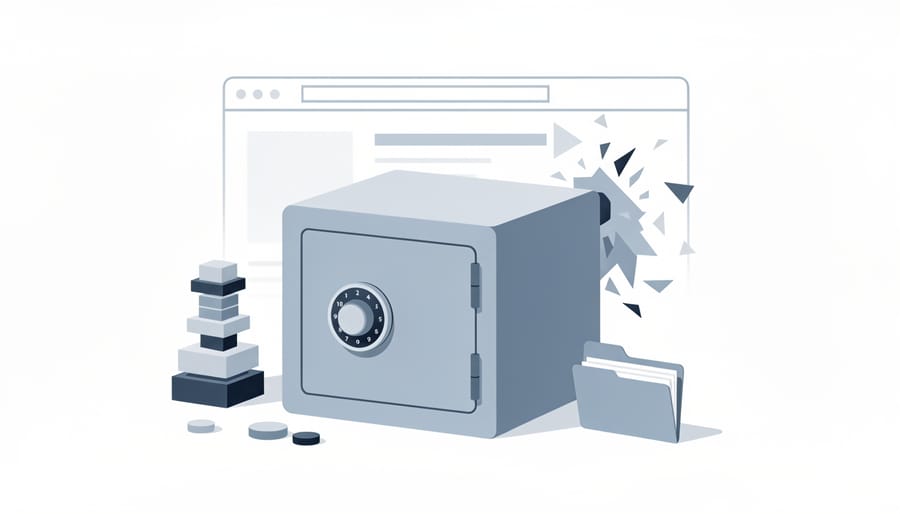
Once you’ve created a backup, where you store it is just as important as creating it in the first place. Think of it this way: if your house floods, you don’t want your emergency supplies stored in the basement. The same logic applies to your WordPress backups.
The gold standard for backup storage is called the 3-2-1 rule, and it’s simpler than it sounds. Keep three copies of your data (your live site plus two backups), store them on two different types of media (like cloud storage and an external hard drive), and keep one copy offsite (away from your web server). This approach protects you against nearly every disaster scenario.
Here are your main storage options:
- Cloud storage services like Google Drive, Dropbox, or Backblaze, automatically synced, accessible anywhere, but requires internet connection and ongoing subscription
- External hard drive, complete control over your data, no monthly fees, but can be lost or damaged and requires manual updates
- Your computer’s local storage, convenient for quick access, but vulnerable if your computer crashes or gets stolen
- Dedicated backup services like UpdraftPlus Vault or BackupBuddy Stash, designed specifically for WordPress, automated, but typically cost more than general cloud storage
The one place you should never store backups exclusively is on your web server itself. If your server crashes, gets hacked, or your hosting account is compromised, those backups disappear along with everything else. It’s like keeping your spare house key inside your house, not much help when you’re locked out. Always download your backups to at least one location completely separate from your hosting server.
How Often Should You Back Up Your WordPress Site?
The right backup schedule depends on how often your site changes. Think of it this way: you only need to back up new content or changes, so match your backup frequency to your update frequency.
If you run a static portfolio site that rarely changes, a monthly backup is usually enough. Your content stays pretty much the same, so you’re not risking much between backups.
Small business sites that update occasionally need weekly backups. You might add a new blog post or update your services page once or twice a week, making weekly backups a smart middle ground.
Active blogs, online stores, or sites with daily content should back up daily. When you’re publishing new posts, processing orders, or receiving customer comments every day, you can’t afford to lose that activity.
Here’s a simple rule: if losing a week’s worth of work would upset you, back up weekly. If losing a day would be painful, back up daily.
Most backup plugins let you schedule automatic backups, so set it once and forget it. Start with weekly backups for most small sites and adjust from there based on your activity level.
Common Backup Mistakes to Avoid
Even the best backup strategy falls apart if you make a few common mistakes. Here’s what to watch out for.
The biggest mistake is never testing your backups. Many site owners faithfully create backups but never verify they actually work. A corrupted or incomplete backup is useless when you need it most. Set a reminder to test a restoration at least once every few months.
Another frequent error is storing all your backups in just one place. If that location fails or gets hacked, you’ve lost everything. Follow the simple rule: keep copies in at least two different locations, like cloud storage and your computer.
Don’t let old backup files pile up endlessly. They’ll eat through your storage space quickly, especially if you back up frequently. Most backup plugins can automatically delete older backups, keeping only your most recent ones.
Finally, remember to adjust your backup schedule as your site changes. If you start publishing daily instead of monthly, your weekly backup routine won’t cut it anymore. Your backup frequency should match how often your content changes.
Frequently Asked Questions About WordPress Backups
Backing up your WordPress site might seem complicated at first, but most people have similar questions when they’re getting started. Here are the answers to the concerns we hear most often from beginners.
Will backing up my site slow it down or take it offline?
No, creating a backup runs in the background and won’t affect your visitors’ experience. Most backup plugins work quietly without impacting site speed, and your site stays fully accessible during the entire process.
Do I need to pay for a backup solution?
Not necessarily. Several excellent free backup plugins handle everything most small sites need, including automated schedules and cloud storage options. Paid solutions offer extras like priority support and one-click restoration, but free tools work perfectly well for getting started.
How much technical knowledge do I need?
If you can install a WordPress plugin and click a few buttons, you have enough knowledge to back up your site. The plugin method requires no coding or technical expertise whatsoever.
What if I accidentally delete something important?
That’s exactly why backups exist. As long as you have a recent backup, you can restore your deleted content in minutes. This is one of the most common reasons people need their backups.
How do I know if my backup actually worked?
Check that your backup files downloaded successfully and aren’t corrupted by verifying the file size matches what the plugin reported. For complete peace of mind, try restoring your backup on a test site to confirm everything’s intact.
Remember that everyone feels uncertain about backups at first. The important thing is starting somewhere, even if it’s just creating your first manual backup today. You’ll quickly realize it’s much simpler than you expected, and the confidence you gain from knowing your site is protected makes the small effort completely worthwhile.
Step-by-step process
Here’s your complete backup workflow from start to finish:
1. Log into your WordPress dashboard and navigate to Plugins > Add New.
2. Search for “UpdraftPlus” (or your preferred backup plugin) and click Install Now, then Activate.
3. Go to Settings > UpdraftPlus Backups to configure your backup settings.
4. Choose your backup destination by clicking the Settings tab. Select a remote storage option like Google Drive or Dropbox, then follow the prompts to connect your account.
5. Set your backup schedule in the same Settings tab. For most sites, weekly file backups and daily database backups work well.
6. Click “Backup Now” from the main UpdraftPlus screen to create your first backup immediately.
7. Wait for the backup to complete. You’ll see a success message when it’s done, typically within a few minutes.
8. Download a copy by clicking on the backup date and selecting each backup component to download to your computer.
9. Test your backup by checking that all files downloaded successfully and aren’t corrupted.
10. Mark your calendar to verify your automatic backups are running as scheduled.
You’ve now got everything you need to protect your WordPress site from data loss. Whether you choose a simple plugin, your hosting provider’s tools, or the manual approach, the important thing is to start today. Pick the method that feels most comfortable and create that first backup.
Remember, backing up your WordPress site doesn’t require technical expertise. Modern tools have made the process remarkably straightforward, even for complete beginners. Set up a schedule that matches how often your site changes, test your backup once to confirm it works, and then let automation handle the rest.
The peace of mind you’ll gain is worth the small time investment. When that plugin conflict happens or an update goes wrong, you’ll be grateful you took this step. Your website represents hours of work, your brand, and perhaps your livelihood. Protecting it with regular backups is one of the smartest decisions you can make as a website owner.
Don’t put it off any longer. Open your WordPress dashboard and set up your first backup right now. Your future self will thank you.