

Building a custom WordPress theme from scratch means creating your own template files using PHP, HTML, and CSS to control exactly how your website looks and functions. You’ll start with two required files (style.css and index.php), then add template files as needed. The process takes about 2-3 hours for a basic functional theme if you’re comfortable with web development technologies though your first attempt might take longer as you learn WordPress’s template hierarchy.
Why build from scratch instead of using a theme builder? You get complete control over every line of code, a lightweight theme that loads faster, and the ability to build client sites without licensing restrictions. Plus, you’ll actually understand how WordPress themes work under the hood.
This tutorial assumes you know basic HTML and CSS but are new to WordPress development. We’ll walk through creating a simple, working theme that displays posts, pages, and a header. You won’t need any frameworks or premium plugins. Just a local WordPress installation, a text editor, and about an afternoon of focused work.
The best part? Once you understand the core concepts, you can expand your theme with sidebars, custom post types, or any feature you need. You’re not locked into someone else’s design decisions or bloated code. This is your theme, built your way.
What You Need Before You Start
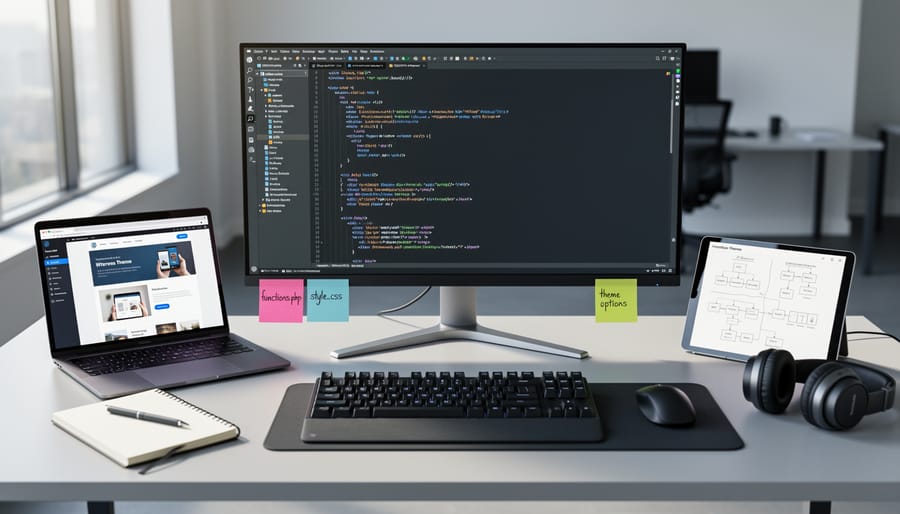
Before you start building your WordPress theme, gather a few essential tools and make sure you have the basics in place. Don’t worry, none of these are expensive or complicated, and most are free. If you’ve ever worked through first webpage basics you already have a head start.
Here’s what you need to have ready:
- A local development environment like LocalWP, XAMPP, or MAMP to run WordPress on your computer safely
- A code editor such as Visual Studio Code, Sublime Text, or Atom for writing and editing your theme files
- Basic HTML and CSS knowledge so you can structure pages and add styles without getting lost
- A fresh WordPress installation with no important content, giving you a clean slate to experiment
- A web browser with developer tools (Chrome, Firefox, or Edge) for testing and debugging your work
The local development environment is your safety net. It lets you build and break things on your own machine without affecting a live website or paying for hosting while you learn. LocalWP is probably the easiest option for beginners because it handles all the server setup automatically, just download, install, and click to create a new WordPress site.
Your code editor is where you’ll spend most of your time. Visual Studio Code is popular because it’s free, has helpful syntax highlighting, and works on Windows, Mac, and Linux. You don’t need fancy features yet; just pick one that feels comfortable and lets you save plain text files.
As for HTML and CSS knowledge, you don’t need to be an expert. If you can write a heading tag, style a paragraph, and understand how classes and IDs work, you’re ready. WordPress will handle the PHP parts in small, manageable chunks as you go.
Important Warnings and Common Pitfalls
Before you start building, understand these critical mistakes that can break your WordPress site, and how to avoid them.
Working on a production site while learning theme development is the fastest way to crash your website. When you’re experimenting with template files and PHP code, a single typo can turn your entire site into a blank white screen. Your visitors will see errors instead of your content, and you might lock yourself out of the admin area. Set up a local environment using tools like LocalWP or XAMPP first. Test everything there before uploading to your live server.
Regular backups aren’t optional. Even when working locally, back up your WordPress site and your theme files frequently. Hard drives fail, code gets overwritten, and you’ll want the ability to restore a working version when things go wrong.
Don’t skip the two required files every theme must have: style.css and index.php. Without these, WordPress won’t recognize your theme folder, and it won’t appear in the Appearance menu. You can add other template files later, but these two are mandatory from the start.
Stay away from WordPress core files completely. Never edit files in wp-admin or wp-includes folders. Your custom code belongs in your theme folder only. Editing core files means your changes vanish the moment WordPress updates, and you risk introducing security vulnerabilities or breaking fundamental site functions. If you need custom functionality, add it through functions.php in your theme or create a separate plugin.
Understanding WordPress Theme File Structure
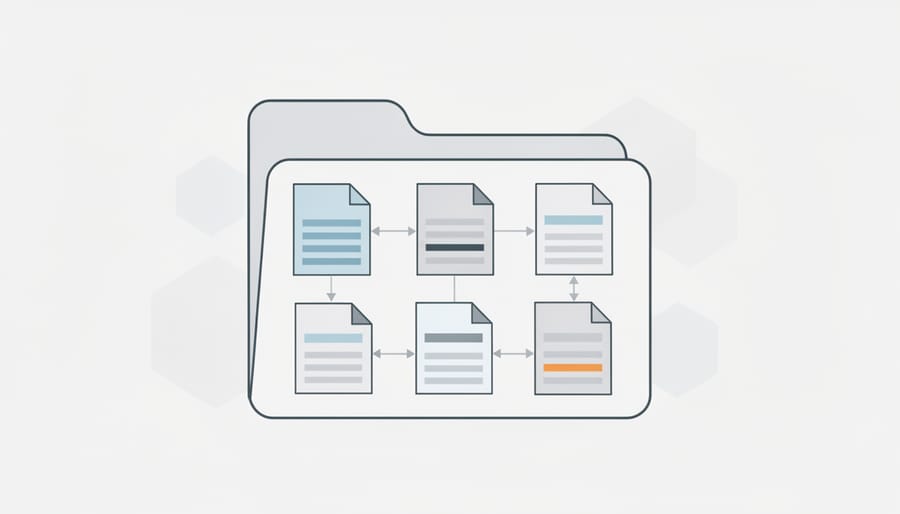
When you open the wp-content/themes folder on your WordPress installation, you’ll see several theme folders sitting side by side. Each one contains a collection of files that work together to control how your website looks and behaves. Understanding what these files do makes theme creation much less mysterious.
At its most basic level, WordPress needs just two files to recognize something as a valid theme: style.css and index.php. That’s it. If these two files exist in a folder inside wp-content/themes, WordPress will see it as an installable theme in your admin dashboard.
The style.css file does double duty. Yes, it holds your CSS styling rules, but it also contains a special comment block at the very top that tells WordPress important information about your theme (the name, author, description, and version number). Without this header comment, WordPress won’t know your theme exists.
The index.php file acts as the default template for displaying content. When WordPress can’t find a more specific template file for a particular page, it falls back to index.php. This is where you’ll place the WordPress Loop (the code that pulls posts from your database and displays them on screen).
Beyond these two required files, most themes include functions.php, which acts like a control panel for your theme. This is where you register menus, enable featured images, add widget areas, and hook into WordPress’s built-in features. Think of it as the behind-the-scenes operator that tells WordPress what your theme can do.
To keep your code organized and avoid repeating yourself, you’ll typically create header.php and footer.php files. These hold the HTML that appears at the top and bottom of every page (your site logo, navigation menu, copyright footer). Once these files exist, you can call them into any template with simple functions like get_header() and get_footer().
As you grow more comfortable, you can add template files for specific content types: single.php for individual blog posts, page.php for static pages, sidebar.php for widget areas, and so on. WordPress follows a template hierarchy, meaning it looks for the most specific template first, then falls back to more general ones if it can’t find what it needs.
You don’t need to create every possible template file right away. Start with the basics, get comfortable, then add more as your needs grow.
Step-by-Step: Building Your First Custom Theme
Step 1: Create Your Theme Folder and Name It
Open your WordPress installation folder and navigate to wp-content/themes. This is where WordPress stores all installed themes, and it’s where your custom theme will live.
Create a new folder inside the themes directory. Give it a descriptive name that reflects your theme’s purpose. For example, if you’re building a theme for a photography portfolio, you might name it “photo-portfolio” or “my-photography-theme”.
Stick to lowercase letters, numbers, and hyphens when naming your folder. Avoid spaces, uppercase letters, and special characters. WordPress can handle spaces, but they create messy URLs and potential compatibility issues. Hyphens keep everything clean and readable. Compare “My Cool Theme” (which becomes “My%20Cool%20Theme” in URLs) to “my-cool-theme” (which stays exactly as written). The hyphenated version wins every time.
Your theme name should be unique to avoid conflicts with existing themes. Don’t name it “default” or “twentytwentysix” or anything that might already exist in the WordPress ecosystem.
That’s it. You now have an empty theme folder ready to fill with files.
Step 2: Add the Required style.css File with Theme Information
Now you’ll create the file that tells WordPress everything it needs to know about your theme. Inside your theme folder, create a new file called `style.css`. This isn’t optional, WordPress won’t recognize your theme without it.
At the very top of this file, add a special comment block with your theme’s information:
“`css
/*
Theme Name: My First Theme
Author: Your Name
Description: A custom WordPress theme I built from scratch
Version: 1.0
*/
“`
Let’s break down what each line does. “Theme Name” is what appears in your WordPress dashboard when you’re choosing themes. Pick something unique and descriptive. “Author” is simply your name or your company name. “Description” helps you remember what this theme is for, keep it brief but clear. “Version” tracks which iteration you’re on, starting with 1.0.
WordPress reads this header block to display your theme in the admin area. Without it, your theme folder stays invisible. You can add other fields like “Author URI” or “License” later, but these four lines give you everything you need to get started.
After this comment block, you’ll add your actual CSS styling rules in later steps. For now, save the file. You’ve just made your theme officially detectable by WordPress.
Step 3: Build Your index.php Template
Now you’ll create the heart of your theme: the index.php file. This is the main template file that WordPress uses to display your content, and it’s required for your theme to work.
Start by creating a new file called `index.php` inside your theme folder. Open it in your code editor and add this basic structure:
“`php
<?php bloginfo(‘name’); ?>
No posts found.
“`
This code includes the WordPress Loop, which is simply a piece of PHP that checks if you have posts and displays them. The `have_posts()` function asks “Are there posts to show?” and `the_post()` grabs each one. Inside the loop, `the_title()` and `the_content()` output your post’s title and content automatically.
Save the file. You now have a working template that can display your WordPress content.
Step 4: Add functions.php to Enable Theme Features
Create a new file in your theme folder called `functions.php`. This file acts as the control center of your WordPress theme, telling WordPress what features your theme supports and how it should behave.
Start with a simple PHP opening tag and add a function to register theme support. Here’s the basic code to get you started:
“`php
‘Primary Menu’
));
}
add_action(‘after_setup_theme’, ‘mytheme_setup’);
“`
Let’s break down what each line does. The `title-tag` support lets WordPress manage your page titles automatically instead of you having to code them manually. The `post-thumbnails` line enables featured images for your posts and pages. The `register_nav_menus` function creates a menu location where you can assign navigation menus through the WordPress admin.
The `add_action` line hooks your function into WordPress at the right time during page loading. Without it, WordPress won’t know when to run your setup code.
Save this file. You won’t see immediate visual changes on your site yet, but you’ve just unlocked important WordPress features. When you go to Appearance > Menus in your admin panel, you’ll now see the Primary Menu location available. You can also set featured images when editing posts.
Step 5: Create header.php and footer.php for Reusable Sections
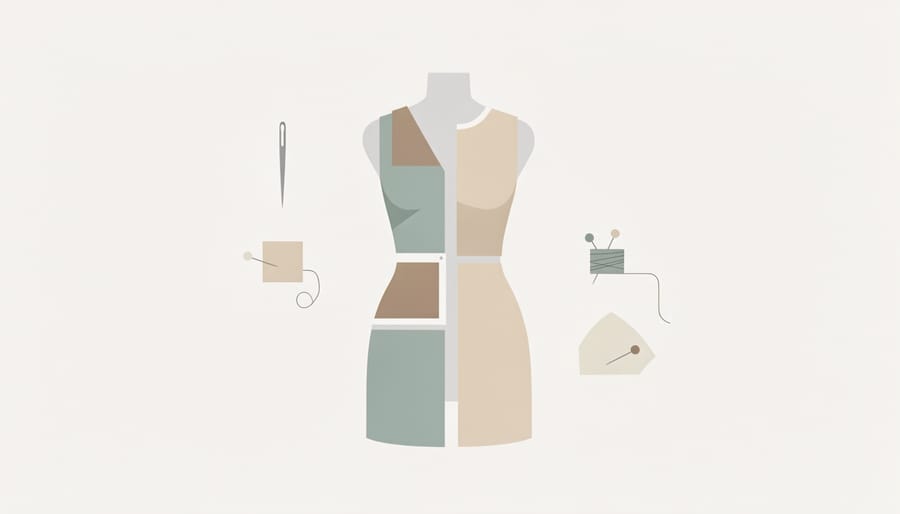
At this point, your index.php probably contains everything, the opening HTML tags, the header area, your content loop, and the closing tags. That works, but it’s not very efficient. If you wanted to add the same header to a page template or a single post template later, you’d have to copy and paste all that code. That’s where header.php and footer.php come in.
Start by creating a new file called header.php in your theme folder. Cut everything from the top of your index.php down to where your main content area begins, this usually means everything from the doctype declaration through your opening body tag and site header. Paste it into header.php and save. Now your index.php is missing its top section, which is exactly what we want.
Next, create footer.php. Cut everything from the end of your main content area to the closing HTML tag, typically your footer content, the closing body tag, and closing html tag. Paste that into footer.php and save.
Now comes the magic part. At the very top of index.php, where you just removed the header code, type this:
At the bottom, where the footer code used to be, add:
These two functions tell WordPress to pull in header.php and footer.php automatically. Save index.php and refresh your site. Everything should look exactly the same as before, but now your code is modular. When you create new template files later, you’ll just call get_header() and get_footer() in those files too, and your entire site will share the same header and footer without any duplicate code.
Step 6: Add Basic CSS Styling to Your Theme
Now that your theme structure is in place, it’s time to make it look good. Open your style.css file and scroll past the theme header comment to start writing CSS rules.
Begin with basic typography. Target your headings and paragraphs:
“`css
body {
font-family: Arial, sans-serif;
line-height: 1.6;
color: #333;
max-width: 1200px;
margin: 0 auto;
padding: 20px;
}
h1, h2, h3 {
color: #2c3e50;
margin-bottom: 15px;
}
p {
margin-bottom: 20px;
}
“`
This gives your theme clean, readable text and centers the content on the page. You can adjust colors, fonts, and spacing to match your vision. Try changing the body background color or adding borders to create visual separation.
Don’t worry about making it perfect right now. CSS is forgiving, and you can always tweak values. Save your changes, refresh your site, and watch your theme come to life. This is where your creativity takes over.
Step 7: Activate and Preview Your Theme in WordPress

Now comes the exciting moment: you get to see your theme live. Log into your WordPress admin dashboard and navigate to Appearance > Themes. You should see your new theme listed alongside WordPress’s default themes. It’ll display the theme name you wrote in style.css, along with your description and author info.
Click the Activate button under your theme’s thumbnail. WordPress will switch your site to use your custom template files immediately. Once activated, click “Visit Site” in the top left corner of the admin bar to view your front-end.
What you should see: your header content, your posts displayed through the Loop, and your footer. The styling from your CSS should be visible too. If your theme doesn’t appear in the theme list, double-check that your theme folder is inside wp-content/themes and that style.css has the required header comment with at least a Theme Name line. A blank screen usually means there’s a syntax error in one of your PHP files, check for missing semicolons or mismatched brackets.
Testing Your Theme and Confirming It Works
After activating your new theme, you’ll want to confirm everything’s working as expected before celebrating. This quick testing phase catches problems early and saves you headaches later.
Start by visiting your site’s homepage in a browser. If you see content instead of a blank white screen, you’re off to a good start. Navigate to a single post and a static page to make sure different template types are loading. Look for your site title, post content, and any menus you’ve set up.
Here’s what to check systematically:
- Homepage displays recent posts using the Loop
- Individual posts open when you click their titles
- Header and footer sections appear on every page
- CSS styles are visible (fonts, colors, spacing match your stylesheet)
- Navigation menu shows up and links work correctly
- Images display if you’ve added featured images to posts
If something isn’t working right, start with the simplest fixes. A white screen usually means a PHP syntax error, so check for missing semicolons or brackets in functions.php. Missing styles often mean you forgot to enqueue your stylesheet properly or there’s a typo in the CSS file name. Broken links might point to old placeholder URLs you need to update.
Open your browser’s developer tools and look at the Console tab for JavaScript errors and the Network tab to see if files are loading. Most problems at this stage come from typos or skipped steps rather than deep technical issues.
If your theme passes these basic checks, you’ve successfully created a working WordPress theme. Any rough edges can be smoothed out as you continue building and refining.
What to Do Next: Expanding Your Theme
Now that you’ve built your first custom theme, you’re ready to take it further. Start by creating additional template files to handle specific content types. Add a `single.php` file to customize how individual blog posts display, and create a `page.php` template for static pages like About or Contact. A `sidebar.php` file lets you add widgets and extra content alongside your main posts.
Next, register widget areas in your `functions.php` using the `register_sidebar()` function. This gives you drag-and-drop control over sidebars, footers, and other widget-ready sections from the WordPress admin. You’ll also want to learn proper stylesheet enqueuing with `wp_enqueue_style()` instead of hardcoding CSS links, which prevents conflicts and improves load times.
Making your theme responsive should be a priority. Add media queries to your CSS so your design adapts to tablets and phones. If you’re planning a more complex design, sketch out a website design concept web before diving into code, which helps organize layouts and navigation structures.
Consider exploring child themes once you’re comfortable. Child themes let you modify an existing theme safely, preserving your changes when the parent theme updates. Each of these additions builds on what you’ve already created, so tackle them one at a time and celebrate each small win.
Frequently Asked Questions
Do I need to know PHP to create a WordPress theme from scratch?
You don’t need to be a PHP expert, but understanding basic PHP syntax helps. Most beginner themes use simple PHP functions to call headers, footers, and display post content, you can learn these as you go by following examples.
Can I use a theme builder like Elementor instead of coding from scratch?
Absolutely. Theme builders are great for speed and visual design, especially if you want to build a business website quickly. Coding from scratch gives you complete control and teaches you how WordPress works under the hood, but it’s not the only path.
How do I make my custom theme responsive?
Use CSS media queries in your style.css file to adjust layouts for different screen sizes. Start with a mobile-first approach, design for small screens, then add breakpoints for tablets and desktops. Modern CSS techniques like flexbox and grid make responsive design much easier.
What’s the difference between a theme and a plugin?
Themes control how your site looks and displays content, while plugins add functionality and features. If you want high-tech website design elements like contact forms or galleries, you’d typically use plugins rather than building everything into your theme.
These questions come up all the time in WordPress forums and beginner groups. The good news? You’ve already tackled the hardest part by building your first theme. As you work on more projects, PHP will become more familiar, responsive design will click into place, and you’ll develop your own preferences for when to code versus when to use builders. The WordPress Codex and developer handbook offer tons of template examples and code snippets you can study and adapt for your projects.
Congratulations! You’ve just built a WordPress theme from the ground up. That’s a genuine accomplishment, and you should feel proud of what you’ve created. You started with an empty folder, added the essential files (style.css with its theme header, index.php with the WordPress Loop, functions.php for features, and header.php and footer.php for structure), and activated a working theme in your WordPress admin. Those core steps are the foundation of every custom theme, no matter how complex it eventually becomes.
The most important lesson here isn’t the code itself. It’s that WordPress theme creation is absolutely learnable. You don’t need to be a programming wizard or have years of experience. You started as a beginner, followed clear steps, and now you have a custom theme running on your site. That’s real progress.
Keep experimenting. Add new template files, try different layouts, tweak your CSS, and break things (on your local site, of course). Every mistake teaches you something, and every small improvement builds your confidence. WordPress is forgiving, and there’s always a way to fix what goes wrong.
When you’re ready to deepen your HTML and CSS skills, explore more tutorials on HTML Tutorials. The more comfortable you become with the building blocks of web design, the more creative freedom you’ll have with your WordPress themes. You’ve taken the first step. Now keep building.