
Manually installing WordPress means uploading the files to your web server and creating a database yourself, giving you complete control over your site’s foundation from day one. This method takes about 15 to 20 minutes once you have the necessary tools ready, and it’s perfect if your hosting provider’s auto-installer isn’t working, if you want to understand how WordPress works at a deeper level, or if you simply prefer setting things up your way.
Why choose manual installation over clicking a one-button installer? You’ll gain hands-on experience with your hosting environment, learn exactly where WordPress files live on your server, and build confidence for future customizations or migrations. Many web developers started exactly where you are right now, and this tutorial will walk you through each action without assuming you already know the technical details. Whether you’re launching your first business website or adding another site to your portfolio, this guide delivers the step-by-step clarity you need to get WordPress running reliably in 2026.
What You’ll Need Before You Start
Before you begin the manual installation process, gather everything you’ll need to avoid interruptions halfway through. Having these items ready will make the installation smooth and straightforward.
Here’s your complete checklist:
- Web hosting account with cPanel or similar control panel access
- FTP access or file manager credentials from your hosting provider
- Domain name pointed to your hosting server
- Empty database with a username and password (you can create this during installation)
- The latest WordPress installation files from
- FTP client software like FileZilla or Cyberduck (optional but helpful)
- Text editor such as Notepad++, Sublime Text, or your computer’s default editor
- About 30 minutes of uninterrupted time
Most of these items come with your web hosting package. If you’re not sure where to find your FTP credentials or database tools, check your hosting welcome email or log into your hosting control panel. The actual WordPress files are free to download directly from the official WordPress website.
Don’t worry if you haven’t created a database yet. We’ll walk through that step together in the installation process. The key is having access to create one through your hosting account. If you run into any confusion about what your hosting provides, a quick message to their support team will point you in the right direction.
Important Things to Know First
Before you dive in, let’s make sure you’re set up for success. If you already have a WordPress site running on this domain, back up your site completely before proceeding, manual installation will overwrite existing files.
Check that your web hosting meets WordPress’s minimum requirements. You’ll need PHP version 7.4 or higher and MySQL version 5.7 or higher (or MariaDB 10.3+). Most hosting providers in 2026 exceed these specs, but it’s worth confirming in your control panel under “Server Information” or similar. WordPress is one of many web development technologies that rely on specific server environments to function properly.
You’ll also need permission to create databases on your hosting account. Some shared hosting plans restrict this, so verify you can access MySQL Databases or phpMyAdmin in your control panel. If you can’t find these tools, contact your host’s support team, they can enable access or create the database for you.
Common pitfalls to avoid: Don’t skip the wp-config.php configuration step, don’t upload files to the wrong directory, and don’t use weak passwords for your database or admin account. Taking an extra five minutes to double-check these details will save you hours of troubleshooting later.
Step-by-Step: Installing WordPress Manually
Step 1: Download and Extract WordPress
Head over to (not, which is different) and click the big blue “Get WordPress” button. You’ll download a ZIP file that’s usually around 20MB. The file will be named something like “wordpress-6.4.2.zip” with the current version number.
Once the download finishes, find the ZIP file in your Downloads folder and extract it. On Windows, right-click the file and choose “Extract All.” On Mac, just double-click the ZIP file. This creates a folder called “wordpress” on your computer.
Open that wordpress folder and you’ll see about 20 files and three subfolders. Don’t let this intimidate you. The important files include wp-config-sample.php (which you’ll rename later), index.php, and the three folders: wp-admin (the dashboard files), wp-content (where themes and plugins live), and wp-includes (WordPress core functions).
You don’t need to understand what each file does right now. Just make sure the extraction completed without errors and all the files are there. If your antivirus software flags anything, that’s normal, WordPress files sometimes trigger false positives because they’re executable PHP code.
Next, you’ll upload all these files to your web server.
Step 2: Create Your Database
WordPress needs a database to store everything about your site, posts, pages, settings, user accounts, the whole works. Before WordPress can do its thing, you’ve got to create that database and set up a user account that can access it.
Log into your hosting control panel. Most hosts use cPanel, but yours might look different. Don’t worry, the basic process is the same everywhere. Look for something called “MySQL Databases” or “Database Wizard.” If you can’t find it, search your control panel for “database.”
Click MySQL Databases (or whatever your host calls it). You’ll see a field to create a new database. Type a name, something like “wp_mysite” works fine. Your host will probably add a prefix automatically, so it might become “username_wp_mysite.” That’s normal. Click Create Database.
Now scroll down to create a database user. Pick a username (like “wpuser”) and generate a strong password using your host’s password generator. Write down both the username and password immediately, you’ll need them in the next step and you won’t be able to retrieve the password later.
Finally, link the user to your database. Scroll to “Add User to Database,” select your new database and user from the dropdown menus, then click Add. On the next screen, check “ALL PRIVILEGES” to give your user full permissions, then save.
You now have three critical pieces of information: database name, database username, and database password. Keep them handy.
Step 3: Upload WordPress Files
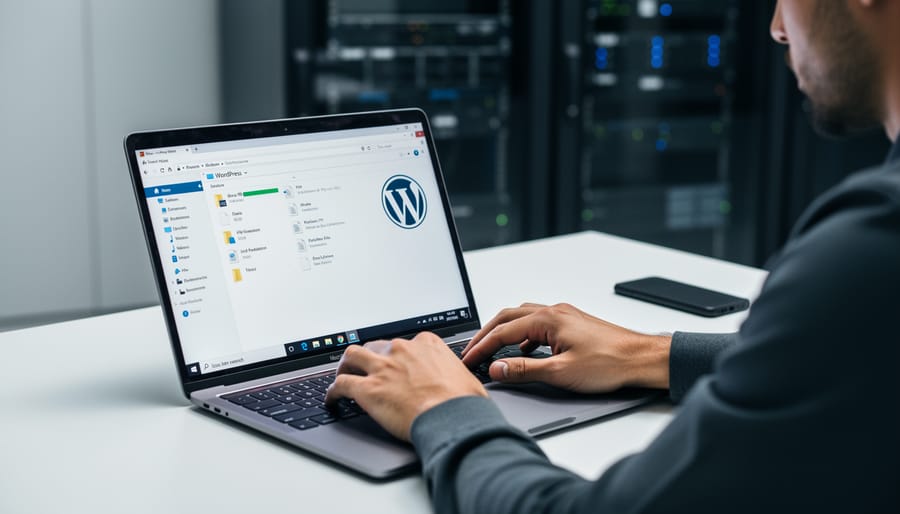
Now that your database is ready, it’s time to get WordPress files onto your server. You have two upload options: an FTP client like FileZilla, or your hosting control panel’s built-in file manager. Both work perfectly, choose whichever feels more comfortable.
If you’re using FTP, open your client and connect using the credentials your host provided (usually found in your welcome email or control panel). Look for the hostname, username, and password. Once connected, you’ll see your local files on the left and your server files on the right.
Navigate to your public directory on the server side. Most hosts call this folder public_html, but some use www, httpdocs, or html. This is the folder that serves your website to visitors. For a root installation (WordPress at ), upload the contents of the wordpress folder, not the folder itself, directly into this public directory. Select all files inside the wordpress folder and drag them over. This typically includes folders like wp-admin, wp-content, wp-includes, plus individual files like index.php and wp-config-sample.php.
For a subdirectory installation (like ), create a new folder inside public_html with your chosen name, then upload the WordPress files into that subfolder.
The upload takes five to ten minutes depending on your connection speed. Don’t close the window until all files transfer completely, you’ll see a progress indicator. If your connection drops mid-upload, simply reconnect and resume.
Step 4: Configure wp-config.php
Now you’ll connect WordPress to your database by editing a configuration file. Don’t worry, this sounds technical, but it’s really just filling in a few blanks.
First, locate the file named `wp-config-sample.php` in the WordPress files you uploaded. Rename this file to `wp-config.php` (just remove “-sample” from the name). You can do this through your FTP client or hosting file manager by right-clicking the file and selecting rename.
Next, open `wp-config.php` in a text editor. Look for four lines near the top that start with “define” and contain “DB_NAME”, “DB_USER”, “DB_PASSWORD”, and “DB_HOST”. These are the blanks you need to fill in.
Replace ‘database_name_here’ with the exact database name you created in Step 2. Replace ‘username_here’ with your database username. Replace ‘password_here’ with your database password. For most hosting setups, leave ‘DB_HOST’ as ”, but check your hosting documentation if you’re unsure, some hosts use a different address.
Keep the single quotes around each value. If your password contains a single quote, add a backslash before it like this: `\’`
The credentials you need are the same ones you wrote down when creating your database. If you didn’t save them, log back into your hosting control panel and check your database settings.
Save the file and upload it back to your server if you edited it on your computer. That’s it, WordPress can now talk to your database.
Step 5: Run the WordPress Installer
Now comes the fun part, bringing your WordPress site to life. Open your web browser and type in your domain name (like ). If everything’s working, you’ll see the WordPress language selection screen. Choose your language and click Continue.
Next, you’ll land on the installation form. Here’s what to fill in:
Site Title: Enter your website’s name. Don’t stress, you can change this anytime in Settings.
Username: This is your admin login name. Avoid using “admin” since that’s the first thing hackers try. Pick something unique like “johnadmin2026” or “siteboss_yourname.”
Password: WordPress generates a strong password automatically. Use it! If you create your own, make it at least 12 characters with uppercase, lowercase, numbers, and symbols. This protects your entire site.
Your Email: Enter an email you check regularly. WordPress sends important notifications here, like password resets and update alerts.
Search Engine Visibility: Leave this unchecked for now unless you specifically want to hide your site from Google while building it.
Click Install WordPress, and within seconds, you’ll see the success message. You’ve done it! You can now log in and start building.
How to Verify Your Installation Worked
After running through the WordPress installer, you’ll want to confirm everything is working properly before you celebrate. Let’s walk through a quick verification checklist to make sure your manual installation was successful.
First, try logging into your WordPress admin area. Open your browser and go to (replace “” with your actual domain). You should see the WordPress login screen. Enter the username and password you created during the installation process. If you can log in successfully and see the WordPress dashboard with its menu on the left side, that’s your first green light.
Now open a new browser tab and visit your site’s front end by typing your domain name. You should see the default WordPress theme (currently Twenty Twenty-Six) with a sample post and page. It won’t look fancy yet, but if you see a working website instead of an error message, your installation is live.
Here’s a quick checklist to verify everything is functioning correctly:
- Successfully log into wp-admin with your credentials
- See the WordPress dashboard with all menu items visible
- View your site’s homepage without error messages
- Click “Visit Site” link in the admin bar to switch between dashboard and front end
- Check that your site URL matches what you intended (http vs https, with or without www)
- Verify you can create a new post or page in the dashboard
If any of these checks fail, don’t panic. The most common culprit is incorrect database credentials in your wp-config.php file. Double-check that your database name, username, and password match exactly what you set up in Step 2. Even a single misplaced character will prevent WordPress from connecting to your database.
A blank white screen usually means a PHP error, often caused by file permission issues. Contact your hosting support if you see this. Getting a 404 error on every page except the homepage typically means your server doesn’t support pretty permalinks yet, which you can fix later in Settings.
What to Do Next After Installing
You’ve got WordPress running, but the default setup needs some finishing touches. Here’s what to tackle first.
Start with permalinks. Head to Settings → Permalinks in your dashboard and switch from the default “Plain” structure to “Post name.” This makes your URLs look like instead of, which helps both visitors and search engines understand your pages.
Next, pick a theme that matches your purpose. You can browse thousands of free options under Appearance → Themes, or create a theme from scratch if you’re feeling adventurous. If you’re looking to build a business website choose something clean and professional.
Install a few essential plugins right away. You’ll want a backup solution like UpdraftPlus, a security plugin such as Wordfence, and an SEO tool like Yoast. Keep it minimal at first, you can always add more later.
Speaking of backups, set up automatic backups immediately. Most backup plugins let you schedule daily or weekly backups to cloud storage. This saves you massive headaches if something breaks.
Secure your wp-admin login by going to Settings → General and changing your admin username from “admin” to something unique. Consider adding two-factor authentication through a security plugin.
Finally, check your file manager or FTP for any leftover installation files in your WordPress directory. Most manual installs clean up automatically, but if you see readme.html or install.php still sitting there, delete them.
Common Questions About Manual WordPress Installation
Getting stuck during installation is totally normal, and most issues have quick fixes. Here are the questions we hear most often from people installing WordPress manually.
Why am I seeing “Error establishing a database connection”?
This means WordPress can’t talk to your database, usually because of wrong credentials in wp-config.php. Double-check your database name, username, password, and host, even one typo will cause this error.
What causes the white screen after installation?
A blank white screen typically happens when your hosting doesn’t meet WordPress requirements (PHP version too old) or file permissions are set incorrectly. Contact your host to verify PHP 7.4+ is enabled and that your WordPress files have 644 permissions.
Is manual installation more secure than one-click installers?
Not necessarily, both methods create the same WordPress installation. Manual installation does let you verify each file and set custom security keys immediately, but the security of your site depends more on what you do after installation (strong passwords, regular updates, security plugins).
How do I install WordPress in a subdirectory instead of the root?
Simply upload your WordPress files to a subfolder (like public_html/blog) instead of directly into public_html. Your site will then be accessible at rather than .
If you’re getting 404 errors on everything except the homepage, your permalink settings need attention. Log into wp-admin, go to Settings, then Permalinks, and click Save Changes without changing anything. This regenerates the .htaccess file that WordPress needs for clean URLs.
Can’t find wp-config-sample.php to rename? Check that you uploaded all the files from inside the wordpress folder, not the folder itself. The sample config file should be right there with wp-login.php and the other core files.
Most installation problems come down to three things: database credentials, file permissions, or hosting requirements. If you’ve verified all three and still can’t get WordPress running, your hosting support team can usually spot the issue in minutes since they see these installations daily.
Congratulations! You’ve just completed a manual WordPress installation, and that’s no small achievement. By taking the hands-on approach, you’ve gained valuable insight into how WordPress actually works behind the scenes. You’re not just clicking buttons anymore, you understand the database connection, the file structure, and how everything fits together.
This knowledge makes troubleshooting easier down the road and gives you confidence to customize your site exactly how you want it. You’ve built a solid foundation that’ll serve you well as your site grows.
Now that WordPress is running, you’re ready to make it truly yours. Our site has plenty of beginner-friendly tutorials to help you customize themes, choose the right plugins, and optimize your new WordPress site. You’ve already done the hard part, the fun part starts now.