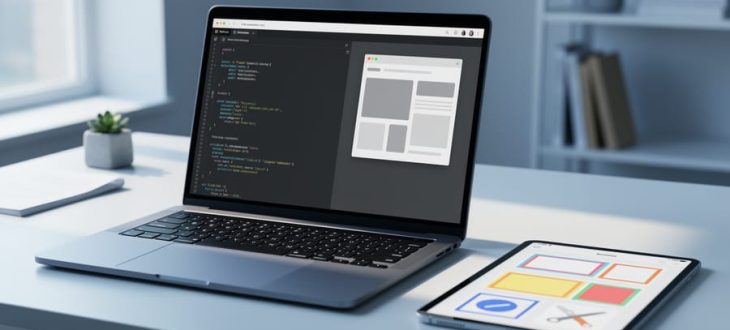
Web designers rely on a small, practical toolkit: a code editor like Visual Studio Code, the developer tools already built into your browser, a design app like Figma, and a few helpers for graphics, layouts, and saving your work. You don’t need all of them on day one. Most beginners start with just an editor and a browser, and both are free.
These tools matter because they cover every stage of a project, from sketching an idea to putting a finished page online. Together they make up the core of today’s technologies for web development and each one solves a specific problem. Figma helps you plan a layout before you write any code. Git and GitHub act as an undo button for your whole project. Website builders like WordPress, Wix, and Squarespace give you a head start if you’d rather not code everything yourself.
Below, I’ve picked seven tool types worth knowing, with free options flagged and simple examples so you can decide what to try first.
How We Picked These Web Design Tools (And How to Choose Your Own)
Picking tools can feel overwhelming, so we kept our checklist short. Every tool on this list had to meet most of these standards:
- Easy to learn, so beginners can get started without a long manual.
- Free or low cost, with a free tier or trial wherever possible.
- Follows web standards, including the HTML and CSS recommended by the W3C.
- Actively maintained, with regular updates from its makers.
- Widely used by real designers, so help and tutorials are easy to find.
Use the same checklist to choose your own tools, then match them to your goal. Building a small business site? A website builder like WordPress, Wix, or Squarespace can get you online quickly, and a free tier of Figma helps you sketch the layout first. Starting a hobby project? A code editor and your browser’s built-in developer tools cost nothing and are all you need.
Learning to code? Begin with a code editor, then add Git and GitHub once you want save points for your work. Paid tools like Photoshop and Illustrator can wait until your projects truly need them. Pick the tools that fit where you are right now, and add more as you grow.
1. A Code Editor (Like Visual Studio Code), Where Your Web Pages Come to Life
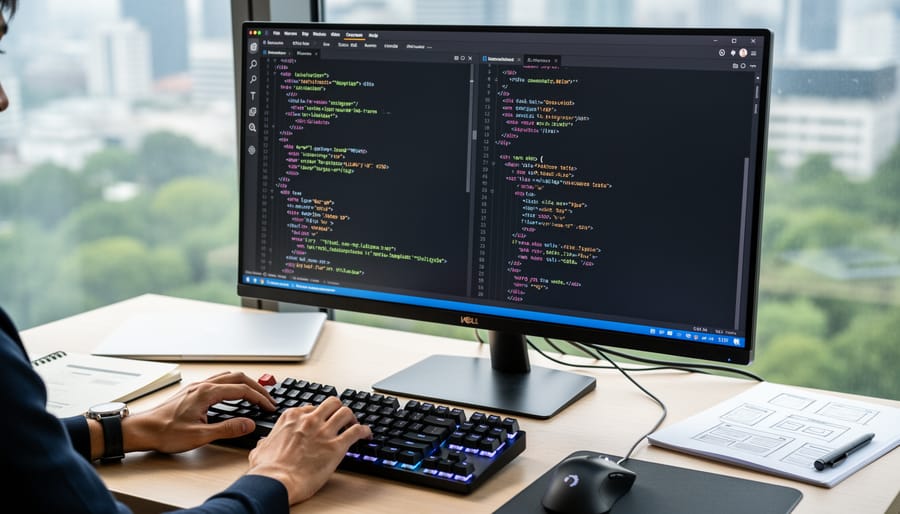
A code editor is simply a smarter notepad built for writing code. You still type HTML and CSS as plain text, but the editor gives you a few friendly helpers that make the whole thing easier and less error-prone.
Here’s what makes it feel so much nicer than a basic notepad:
– Color-coded text: tags, words, and values show up in different colors, so mistakes jump out at you.
– Auto-complete: start typing a tag and the editor suggests the rest.
– Live preview extensions: see your page update in a browser as you type.
Visual Studio Code is a free, popular choice that works on Windows, Mac, and Linux. That said, you don’t need anything fancy to begin. Even the plain text editor already on your computer will do the job while you’re learning.
If you’d like a gentle walkthrough, you can write your first webpage in about half an hour, even with zero experience. To give you a taste, here’s a tiny example of what you’d type in your editor:
“`
Hello, world!
This is my first web page.
“`
Save that file as index.html, open it in your browser, and you’ll see your very own page. That’s it. You just built something real.
2. Your Web Browser’s Built-In Developer Tools, a Free Way to Peek Under the Hood
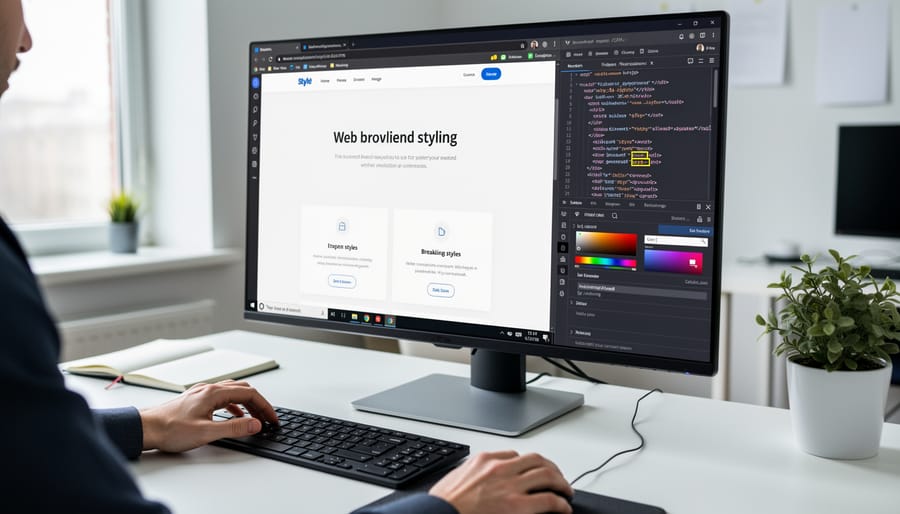
Every major browser, including Chrome, Firefox, Edge, and Safari, ships with a free set of developer tools. Think of them as an x-ray machine for websites. You can look at how any page is built, test a design idea, and see how it behaves on a phone, all without installing a thing.
Here’s a quick way to try it:
1. Open any web page in your browser.
2. Right-click a heading or a button and choose Inspect (in Safari, turn on the Develop menu in Settings first).
3. Look for the panel that shows the page’s HTML on one side and its CSS styles on the other.
4. Find a line like `color: #333;` in the styles, click the color value, and type something new, such as `red`.
5. Watch the page change instantly.
That’s the best part for beginners: nothing you change here is permanent, and nothing on the real website is affected. You can’t break anything, so poke around freely.
You can also click the small device icon in the toolbar to preview the page at phone or tablet sizes. It’s a handy way to spot layout problems early, and it pairs nicely with a sketch of your page structure. If you haven’t planned one yet, it helps to make a concept web first, then use these tools to check your ideas.
3. Figma, for Planning and Prototyping Your Design Before You Code
Think of Figma as a sketchbook that lives in your web browser. You use it to lay out a page, pick colors and fonts, and drop in boxes where photos and buttons will go. Nothing to install, and you can open it on almost any computer.
Why plan before you code? Moving a button around in a design takes seconds. Moving it after you’ve written the code takes much longer. A quick mockup lets you spot problems early, like text that’s too small to read or a menu that’s hard to find.
Figma also lets you link screens together to make a clickable prototype. Click a button, and it jumps to the next page, just like a real site would. It’s a great way to test your idea before building anything.
A few things beginners tend to like:
– A free plan that works well for small projects and learning
– Ready-made templates you can tweak instead of starting from a blank screen
– Simple sharing, so a client or teammate can view your design and leave comments right on it
If you’re a small business owner, that last one is handy. You can show a designer exactly what you have in mind, and they can show you what they’re planning, all before a single line of code is written.
4. Adobe Photoshop and Illustrator, for Polished Images and Graphics
Websites lean on images, so most designers keep a graphics editor handy. Two of the best known come from Adobe: Photoshop and Illustrator.
Photoshop is the go-to for photos. You can crop a picture, brighten a dull shot, remove a messy background, or shrink a huge image so your page loads faster. It works with “raster” graphics, which are made of tiny colored squares called pixels. That’s how photos work, and why they get blurry if you stretch them too far.
Illustrator handles “vector” graphics instead. These are built from lines and shapes described by math, not pixels. The payoff is that a logo or icon made in Illustrator stays crisp whether it’s tiny in a menu or huge on a banner.
A simple way to remember it: Photoshop for photos, Illustrator for logos and icons.
Both are paid tools, sold by subscription, so they may not suit a small budget or a first project. If that’s you, don’t worry. There are free alternatives that cover the basics nicely, and the next item on our list shares one that many beginners start with.
5. Website Builders and CMS Platforms (Like WordPress, Wix, and Squarespace), When You Want a Head Start
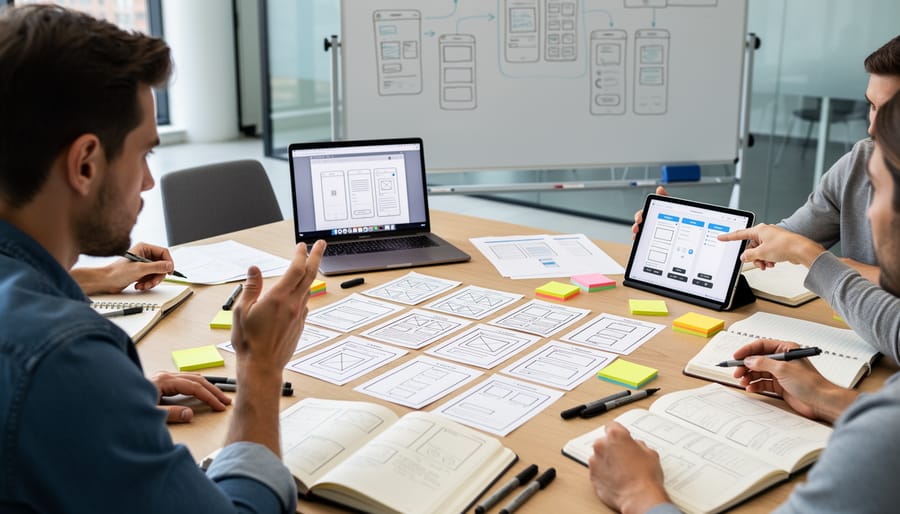
Not everyone wants to build a site from a blank page, and that’s perfectly fine. Website builders like Wix and Squarespace, and content management systems (CMS) like WordPress, let you assemble a site from ready-made templates. You drag blocks into place, swap in your own text and photos, and publish. No code required.
A builder makes a lot of sense when:
– You need to launch quickly, like a small business site with a few pages
– You want to update text, prices, or photos yourself without calling a developer
– You’d rather focus on your content than on how the page is built behind the scenes
Here’s the nice part: these platforms get more powerful when you know a little HTML and CSS. Most of them let you add custom code, so you can tweak a button color, adjust spacing, or fix a layout that doesn’t quite look right. Without that knowledge, you’re limited to whatever the template allows.
Think of a builder as a head start, not a finish line. If you ever want more control, picking up some CSS foundations will help you get far more out of any platform you choose. Start with a builder today, and let your curiosity about code grow at its own pace.
6. CSS Frameworks (Like Bootstrap and Tailwind CSS), Ready-Made Building Blocks for Layouts
A CSS framework is a collection of pre-written styles you can reuse, so you don’t have to start from a blank page. Think of it like a box of ready-made building blocks: buttons, menus, grids, and cards that already look good and are ready to snap into place.
The biggest win is speed. Frameworks like Bootstrap and Tailwind CSS come with layout tools built for responsive design, which just means your page adjusts itself to look right on phones, tablets, and desktops. Instead of writing every rule yourself, you add a few ready-made class names to your HTML and the framework handles the rest.
Here’s a tiny taste of how that looks with Bootstrap:
Those two class names turn a plain button into a polished, blue one, no extra styling needed.
The two feel a little different. Bootstrap gives you finished components you can drop in right away. Tailwind gives you small utility classes you mix together for a custom look.
One friendly tip: a little CSS knowledge makes frameworks click. When you understand what colors, margins, and layouts actually do, the framework’s class names start to make sense instead of feeling like magic. If you ever run into a framework-related snag while building on a platform, remember it’s smart to back up your WordPress site before experimenting with new styles.
7. Version Control with Git and GitHub, Your Safety Net for Every Change
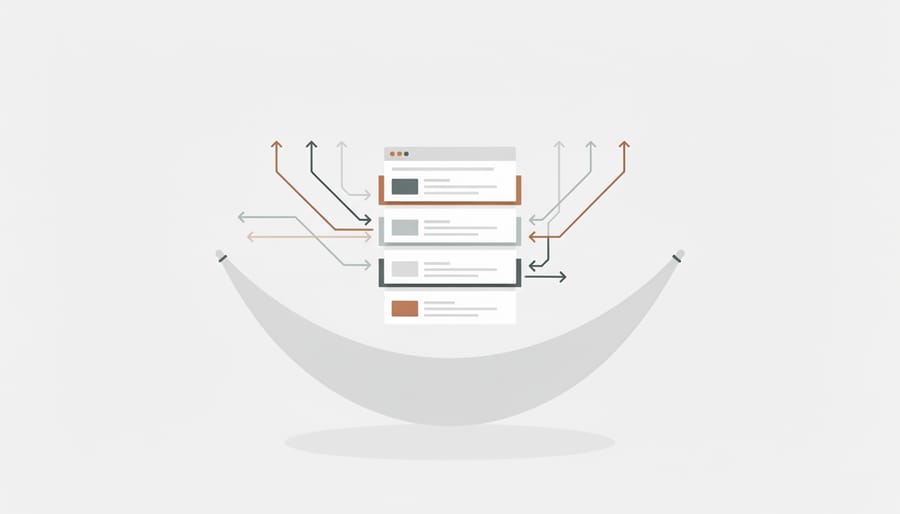
Think of version control as save points in a video game. Each time you finish a chunk of work, you save a snapshot of your whole project. If you break something later, you can jump back to a point when everything worked. You can also see exactly what changed between one snapshot and the next, which is a lifesaver when a page suddenly looks wrong and you can’t remember why.
Git is the free tool that creates those save points on your own computer. GitHub is a website where you can store a copy of your project online, so it’s backed up and easy to share with a client or teammate. They work as a pair, but they aren’t the same thing.
Here’s a bonus for small sites: GitHub Pages can publish a simple HTML and CSS site for free, straight from your project. That makes it a handy way to put a first page on the web without paying for hosting.
You don’t need to master everything at once. Three basics will take you a long way: saving a snapshot (a “commit”), looking at your history, and uploading your work to GitHub. Start there, and add the rest as you grow more comfortable.
Quick Answers to Common Questions About Web Design Tools
Starting out raises a lot of “do I need this?” questions, so here are straight answers to the ones beginners ask most.
Do I need to pay for web design tools?
Not at all. Visual Studio Code, your browser’s developer tools, Git, and GitHub are free, and Figma has a free tier that’s plenty for small projects. Paid tools like Photoshop and Illustrator are nice extras, not requirements.
Which tool should I learn first?
Start with a code editor like Visual Studio Code and your browser’s developer tools. Together they let you write a page and see exactly how it behaves, which is the best foundation for everything else.
Do I need to know how to code to design a website?
No, you can launch a site with a builder like WordPress, Wix, or Squarespace without writing any code. Picking up basic HTML and CSS along the way gives you far more control, though, and it’s easier than it looks.
Can I build a site with just a text editor and a browser?
Absolutely. Write your HTML and CSS in the editor, open the file in your browser, and you’ve got a working website. Plenty of great sites started exactly this way.
How often should I update my tools?
Most tools nudge you when a new version is ready, so accepting those updates now and then is plenty. Updates usually bring bug fixes and handy new features, and your browser tends to update itself automatically.
If your question isn’t on this list, don’t worry. Every designer started with the same doubts, and you can sort most of them out by simply trying a tool for an afternoon.
You don’t need every tool on this list to build a good website. Start with a code editor and your browser’s developer tools, since both are free and teach you a lot fast. As your projects grow, you can add Figma for planning, a graphics editor for polished images, or Git and GitHub for safe saves along the way.
The best next step is a small one. Pick a single tool, open it up, and build a simple first page today. It doesn’t have to be perfect, and every web designer you admire started exactly there.